Nessie provides packaged skills for Claude Code and Codex, plus a CLI that any terminal-based agent or script can call.
Requirements:
- Claude Code or Codex must be installed on your Mac
- The Nessie app must be running for CLI access to work
Setup starts with the Nessie CLI, then you can install the Claude Code or Codex skill and optionally enable automatic session briefings.
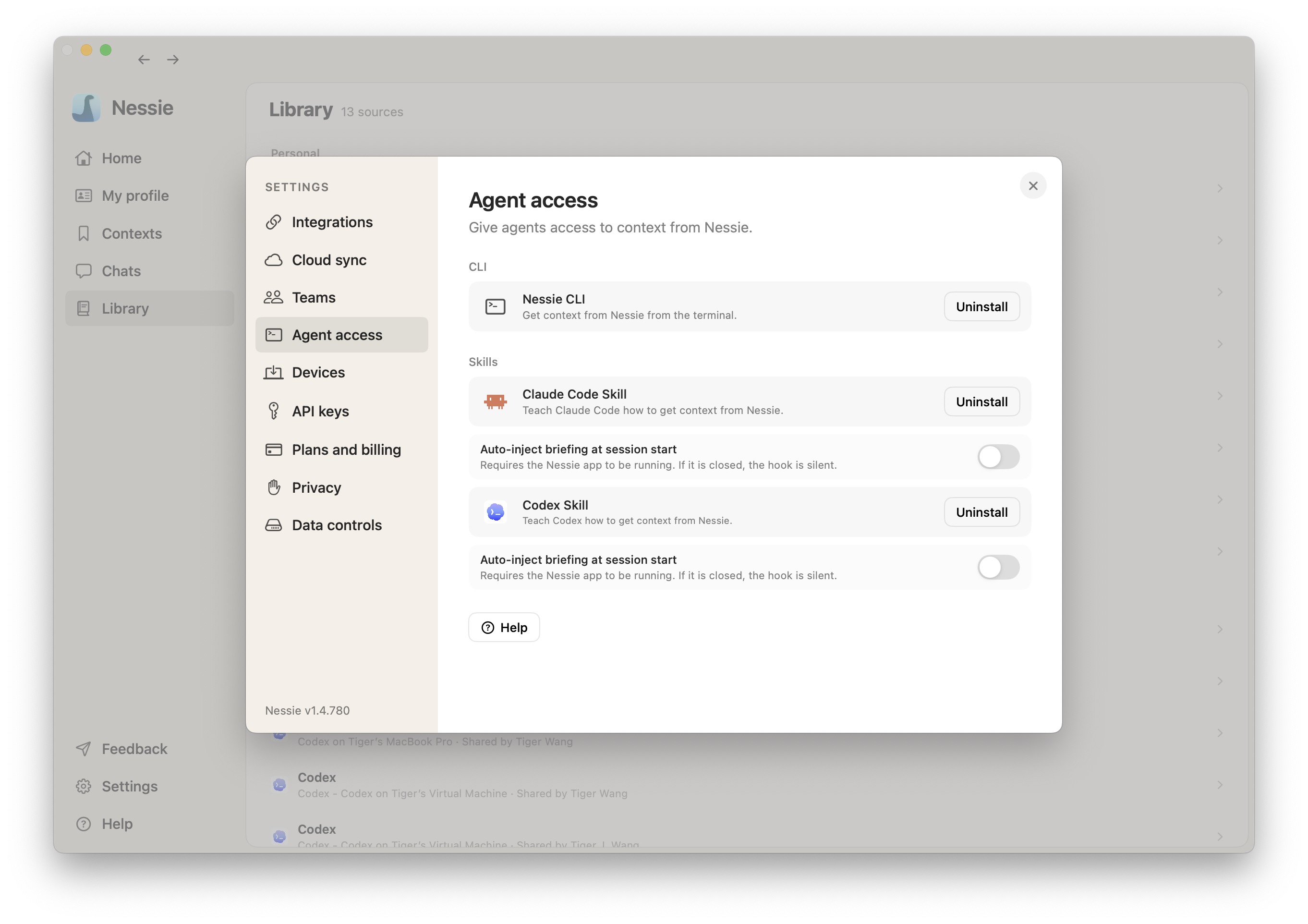
Step 1: Install the Nessie CLI
- Open Nessie and go to Settings → Agent Access
- In the CLI section, click Install next to Nessie CLI
- You'll be prompted for your Mac password to complete the installation
- Once installed, the row shows a green Installed badge
Step 2: Install the skill for your agent
- In the same Settings → Agent Access page, find the Skills section
- Click Install next to the skill for your agent (Claude Code or Codex)
- The skill is installed instantly — no password needed
Skills update automatically whenever you update Nessie.
Step 3: Turn on auto-briefing
Use Auto-inject briefing at session start if you want new Claude Code or Codex sessions to start with current Nessie context automatically. The briefing is generated from your Nessie profile and recent activity, so the agent begins with a compact summary of what you are working on, recent decisions, and relevant context before you ask the first question.
Auto-briefing requires the Nessie app to be running. If Nessie is closed, the startup hook stays silent instead of blocking the agent session.